> ## Documentation Index
> Fetch the complete documentation index at: https://comfyuiwiki.com/llms.txt
> Use this file to discover all available pages before exploring further.
# Runway 合作伙伴节点 视频生成 ComfyUI 官方示例
> 本文将介绍如何在 ComfyUI 中使用 Runway 节点进行视频生成的相关工作流
Runway 是一家专注于生成式 AI 的科技公司,提供强大的视频生成功能。目前 ComfyUI 已集成 Runway API,你可以直接在 ComfyUI 中使用相关节点进行视频生成。
目前 ComfyUI 中原生集成了以下 Runway 视频生成模型:
* Runway Gen4 turbo
**已退役(EOL)**:**Runway Gen3a Turbo** 和 **Runway 首尾帧转视频** 已于 **2026 年 7 月 30 日** 达到生命周期终点。Runway 于该日下线 Gen-3 Alpha Turbo。相关 Partner Nodes(`RunwayImageToVideoNodeGen3a`、`RunwayFirstLastFrameNode`)及工作流模板已弃用,不再受支持。
### 已下架工作流与替代方案
| 已移除模板 | 建议替代 |
| :-------------------------------------- | :---------------------------------------------------------------------------------------------------------------------------------------------------------------- |
| `api_runway_gen3a_turbo_image_to_video` | [`api_runway_gen4_turo_image_to_video`](https://github.com/Comfy-Org/workflow_templates/blob/main/templates/api_runway_gen4_turo_image_to_video.json)(Gen4 Turbo) |
| `api_runway_first_last_frame` | [Kling 3.0 首尾帧转视频](/zh/tutorials/partner-nodes/kling/kling-3-0)(`api_kling_v3_flf2v`)或其他首尾帧模板 |
使用 API 节点需要保证你已经正常登录,并在受许可的网络环境下使用,请参考[API 节点总览](/zh/tutorials/partner-nodes/overview)部分文档来了解使用 API 节点的具体使用要求。
请确保你的 ComfyUI 已经更新。
* [ComfyUI 下载](https://www.comfy.org/download)
* [ComfyUI 更新教程](/zh/installation/update_comfyui)
本指南里的工作流可以在 ComfyUI 的[工作流模板](/zh/interface/features/template)中找到。如果找不到,可能是 ComfyUI 没有更新。
如果加载工作流时有节点缺失,可能原因有:
1. 你用的不是最新开发版(nightly)。
2. 启动时有些节点导入失败。
* [Cloud](https://cloud.comfy.org) 会在 ComfyUI 稳定版本发布后更新,我们会同步更新 Cloud。
所以,如果你发现本教程中有任何核心节点缺失,那是因为对应的节点支持还在开发中没有发布正式的稳定版,请等待下一个稳定版本发布。
## Gen4 turbo 图生视频工作流
### 1. 工作流文件下载
下面的视频的`metadata`中已经包含工作流信息,请下载并拖入 ComfyUI 中加载对应工作流。
下载 Json 格式工作流文件
下载下面的图片作为输入图片

### 2. 按步骤完成工作流的运行
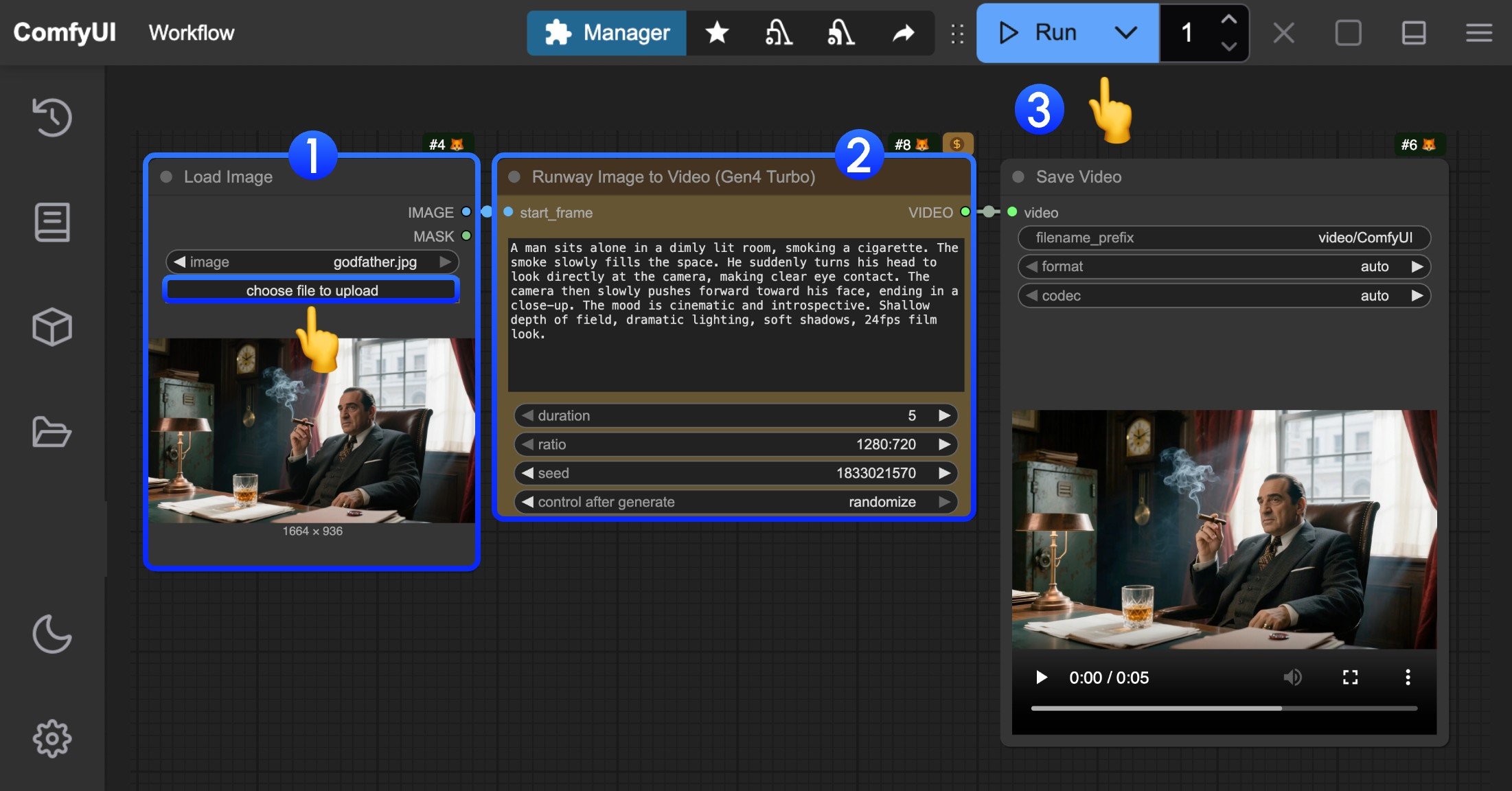 你可参考图片中的序号来完成最基础的文生图工作流运行:
1. 在 `Load Image` 节点中加载提供的输入图片
2. 在 `Runway Gen4 turbo` 节点中设置 `prompt` 描述视频内容,修改 `duration` 参数来设置视频时长, 修改 `ratio` 参数来设置视频宽高比
3. 点击 `Run` 按钮,或者使用快捷键 `Ctrl(cmd) + Enter(回车)` 来执行视频的生成。
4. 等待 API 返回结果后,你可在 `Save Video` 节点中查看生成的视频(右键菜单可以保存),对应的视频也会被保存至 `ComfyUI/output/` 目录下。
你可参考图片中的序号来完成最基础的文生图工作流运行:
1. 在 `Load Image` 节点中加载提供的输入图片
2. 在 `Runway Gen4 turbo` 节点中设置 `prompt` 描述视频内容,修改 `duration` 参数来设置视频时长, 修改 `ratio` 参数来设置视频宽高比
3. 点击 `Run` 按钮,或者使用快捷键 `Ctrl(cmd) + Enter(回车)` 来执行视频的生成。
4. 等待 API 返回结果后,你可在 `Save Video` 节点中查看生成的视频(右键菜单可以保存),对应的视频也会被保存至 `ComfyUI/output/` 目录下。